
Reset a Forgotten ClipperID Password
Please note that you will need your ClipperID email address that was assigned by SPSCC to complete these steps! If you have not activated your student accounts, or do not know your ClipperID email address, please call the IT Help Desk at 360-596-5544.
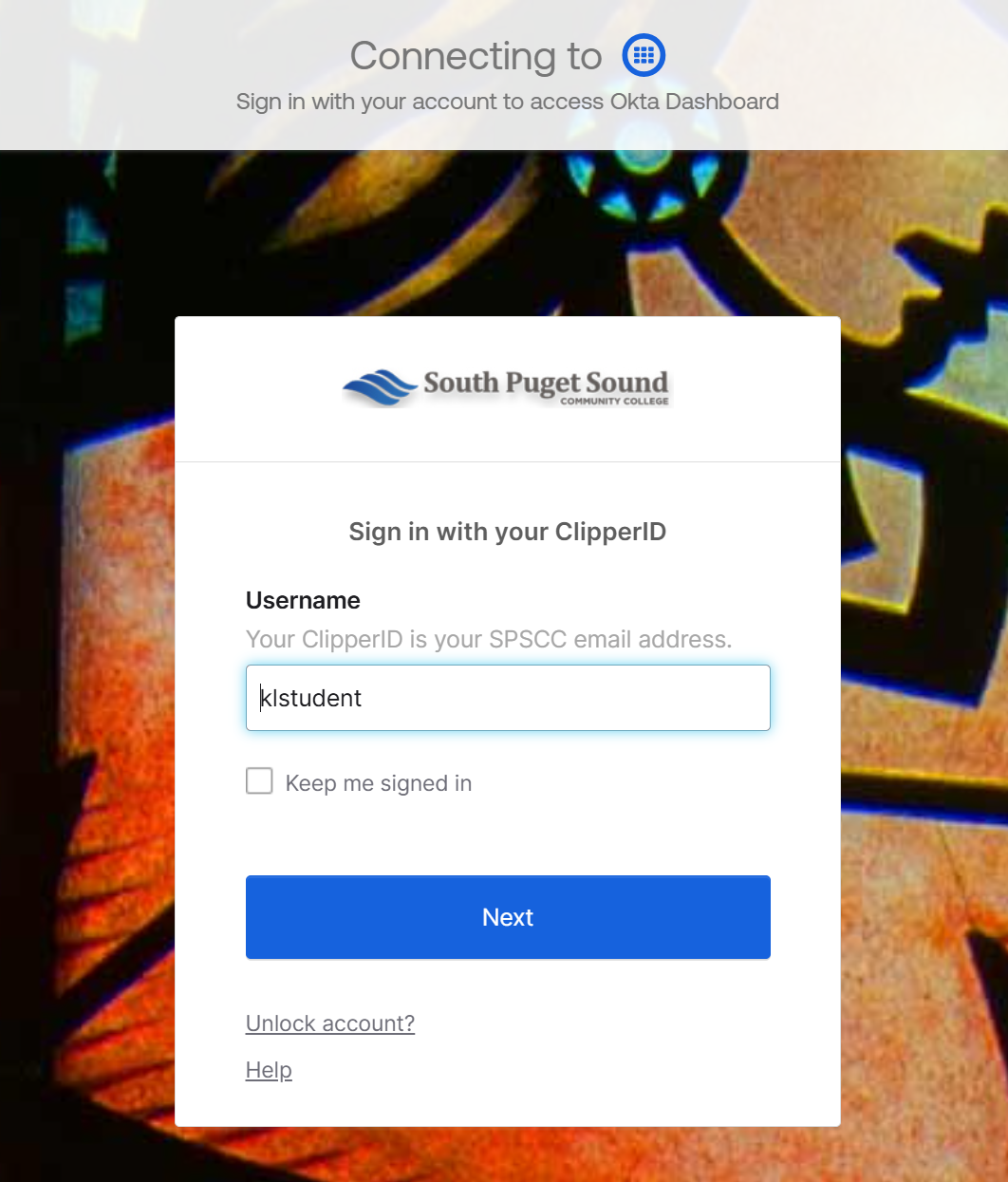
Go to any site requiring ClipperID login, such as the "MySPSCC" site or Canvas, enter your ClipperID email and select "Next."
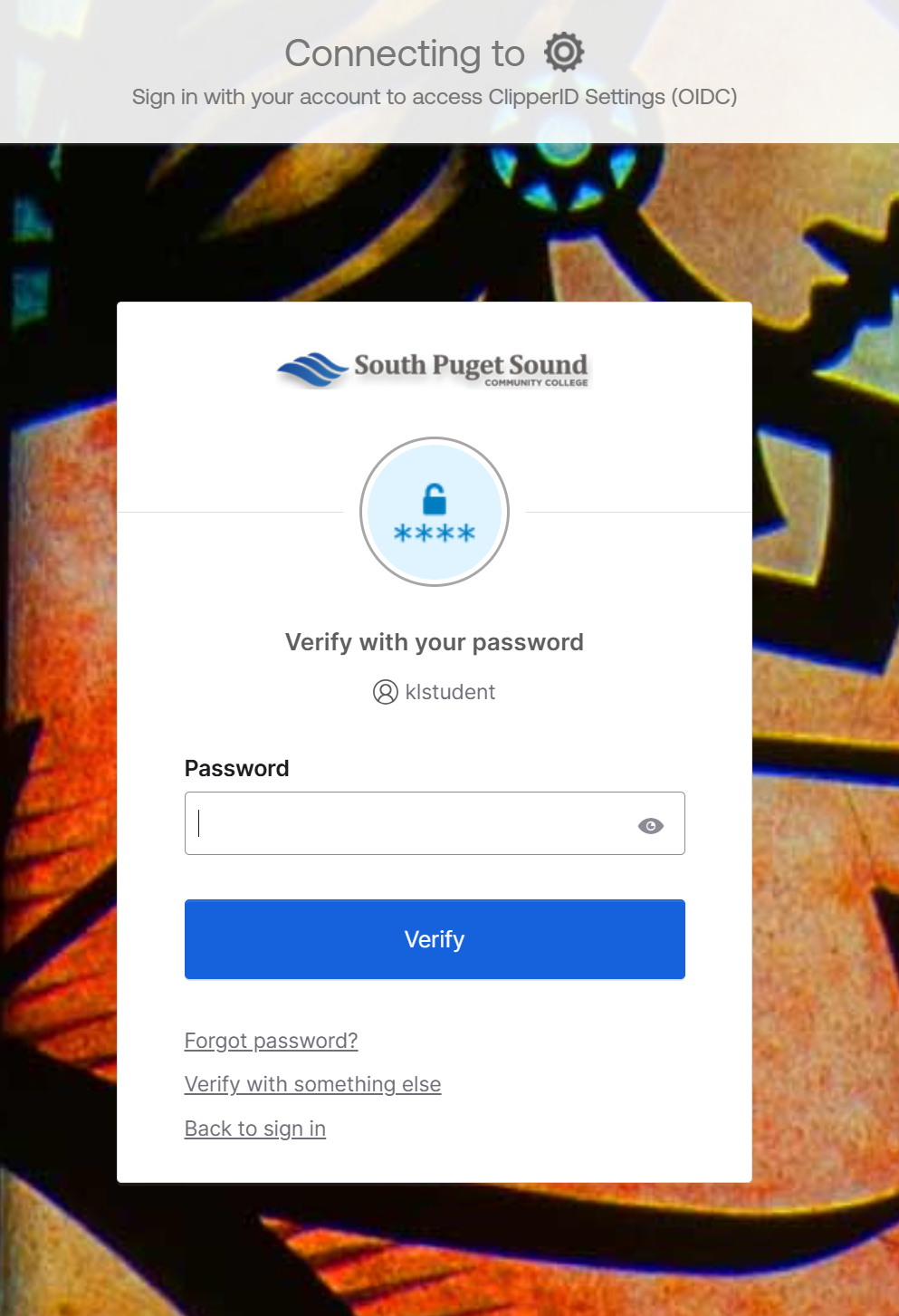
Select Forgot Password? on the second screen that reads "Verify with your Password." You'll find the link beneath the password field and "Verify" button.
Choose Okta Verify or any other non-password authentication method you have set up to verify your identity.
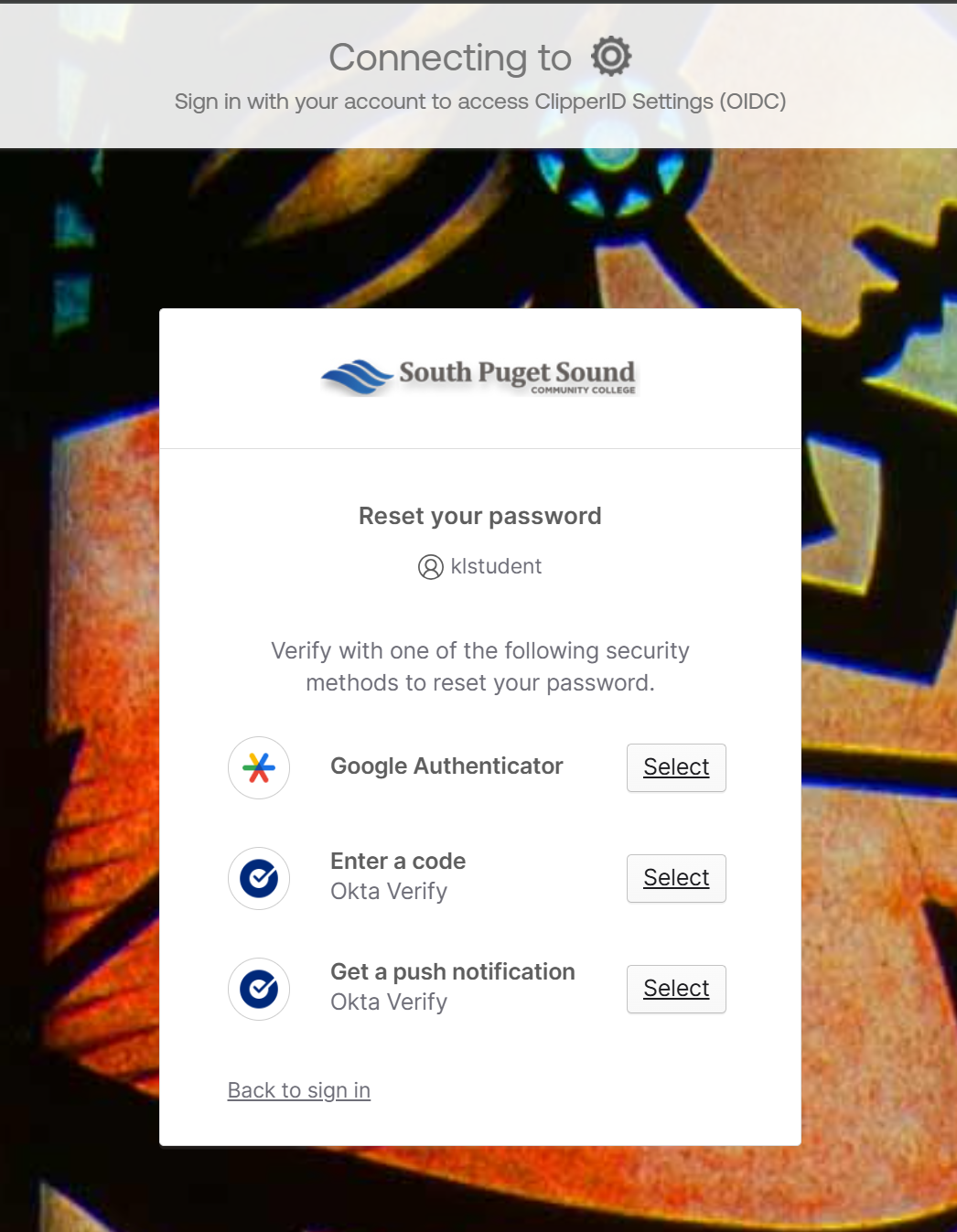
- Go through the steps to verify with your authentication method. In the case of Okta Verify, you will need to respond to the notification on your phone or enter a code from the application, just as when you log into your ClipperID at any other time.
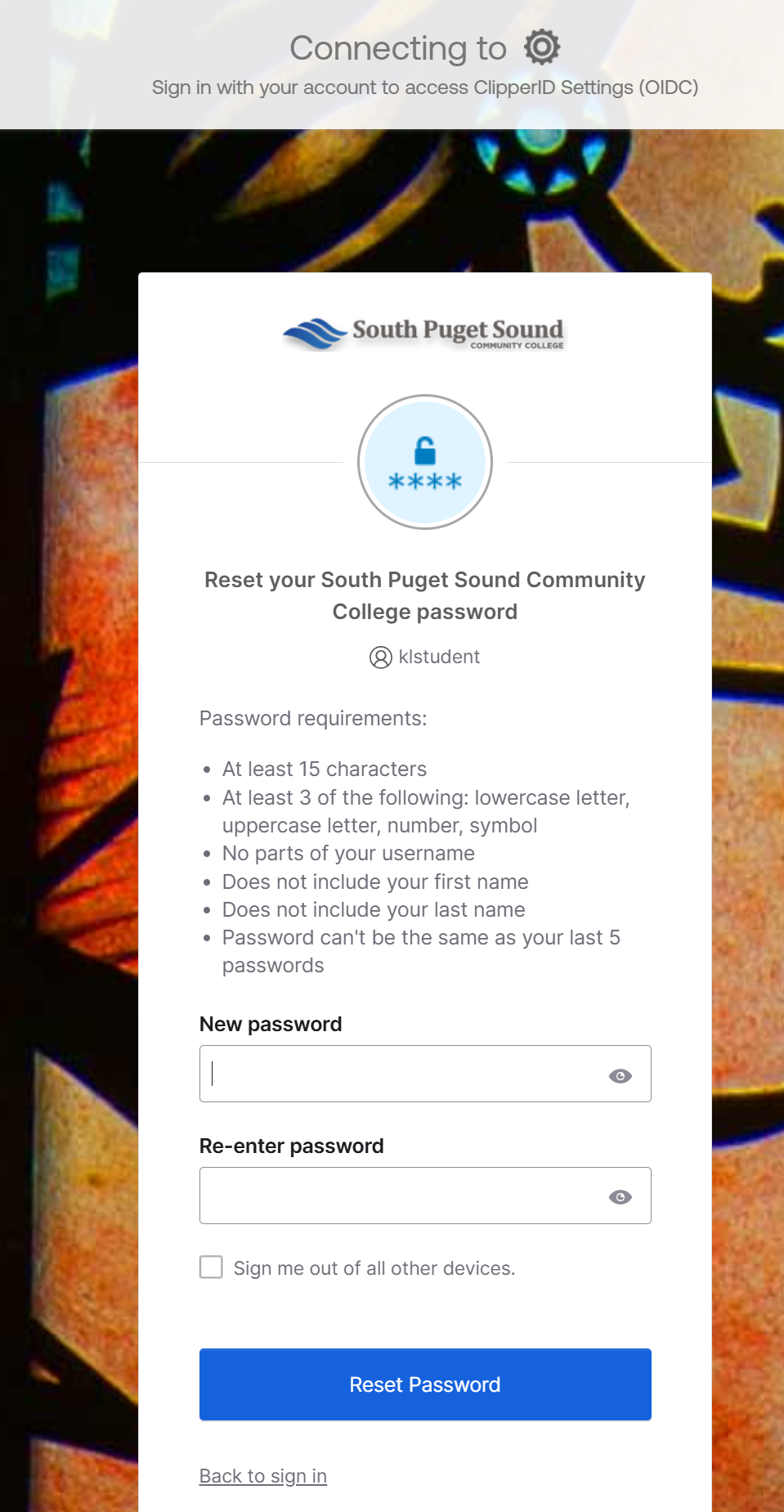
Back on the Okta screen, enter and confirm your new password.
Be sure to read all necessary requirements so that your new password is accepted! If you do not receive a successful reset confirmation, please check the page for any error messages.
- After the reset is complete, sign in again using your new Password.
Unlock a ClipperID Account
- Go to any site requiring ClipperID login, such as the "MySPSCC" site or Canvas.
Select Unlock Account? on the sign-in screen, under the username field and the "Next" button.
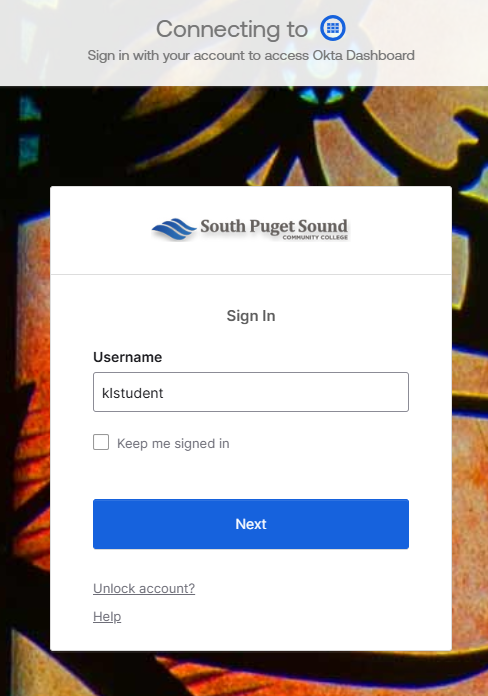
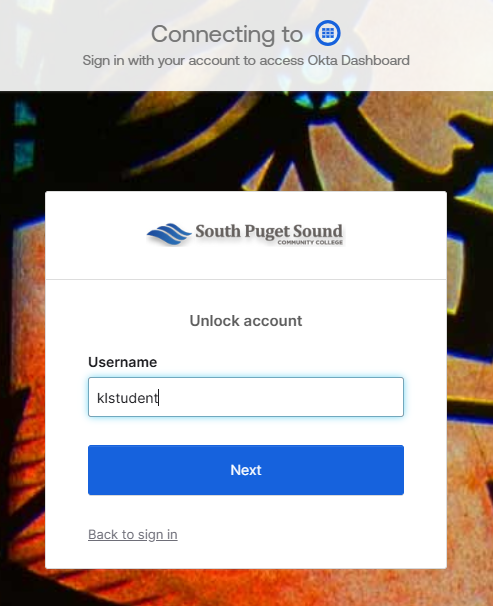
Enter your ClipperID when prompted.
This must be the ClipperID email assigned by SPSCC, and cannot be your personal email address. If you do not know your ClipperID email address, please reach out to the Help Desk at 360-596-5544.
Go through your authentication of choice from the list. Choose Okta Verify or whatever other non-password authentication method you have set up to verify your identity.
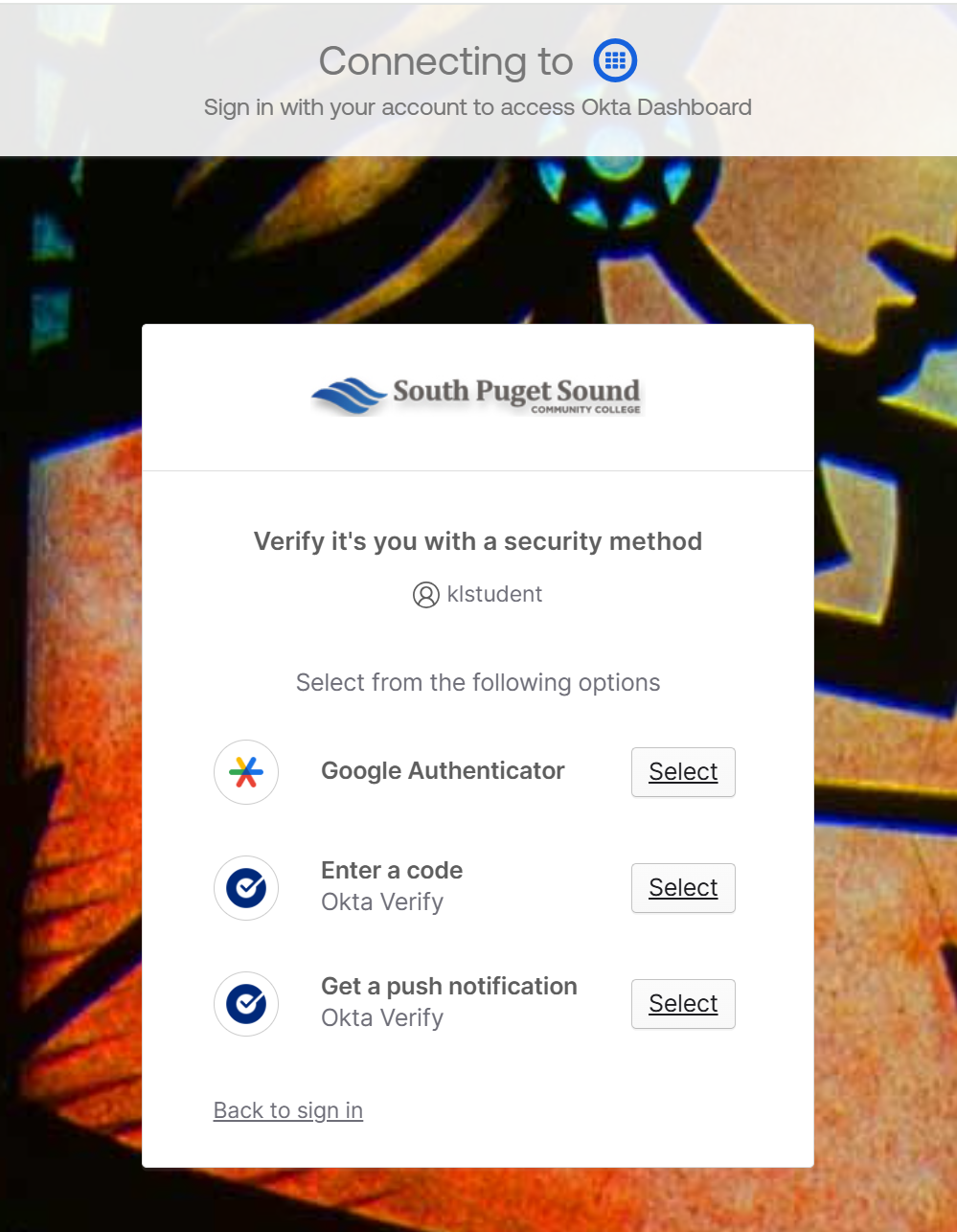
- Complete that authentication method. In the case of Okta Verify, you will need to respond to the notification on your phone or enter a code from the application, just as when you log into your ClipperID at any other time.
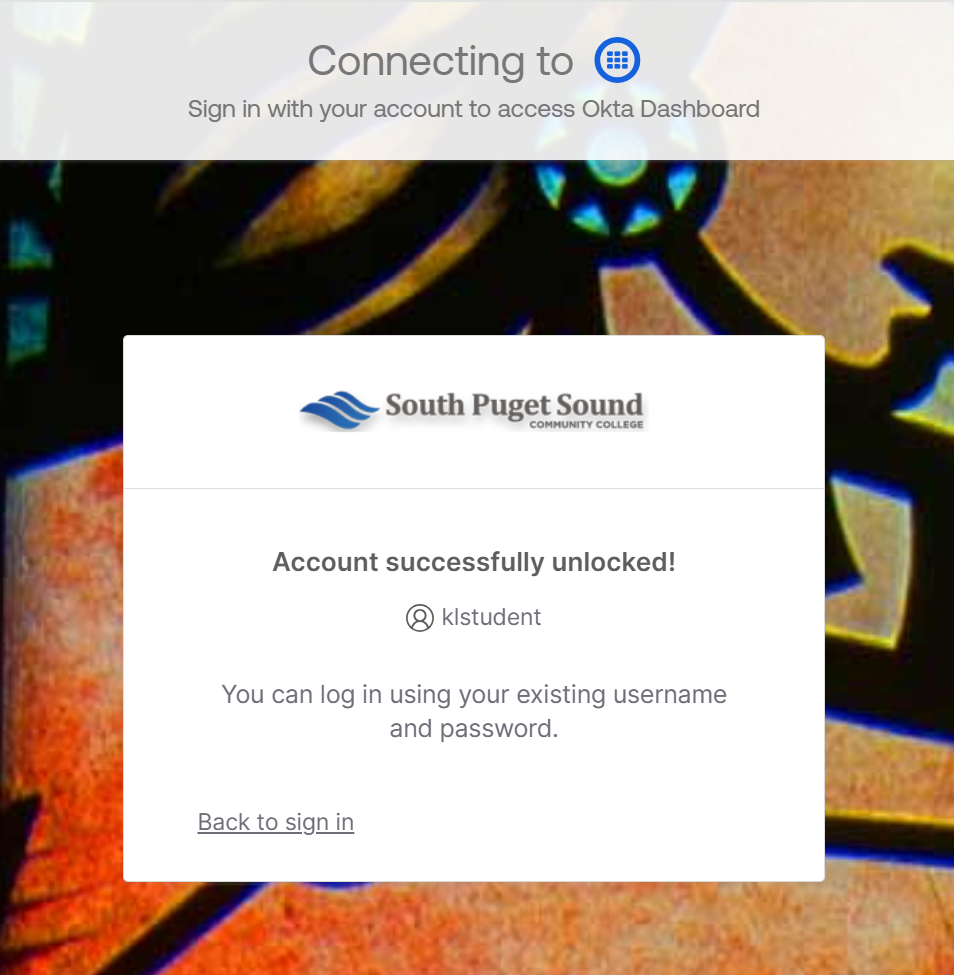
When Okta confirms that your account is unlocked, return to the sign-in page and try signing in again.
IT Services Help Desk
if you run into any issues following this guide, please contact the IT Services Help Desk to resolve them.
We're open from 8:00am to 5:00pm M-Th, 10:00am to 5:00pm F
- at 360-596-5544
- or helpdesk@spscc.edu
- or even visit us in person on the first floor of Building 22